
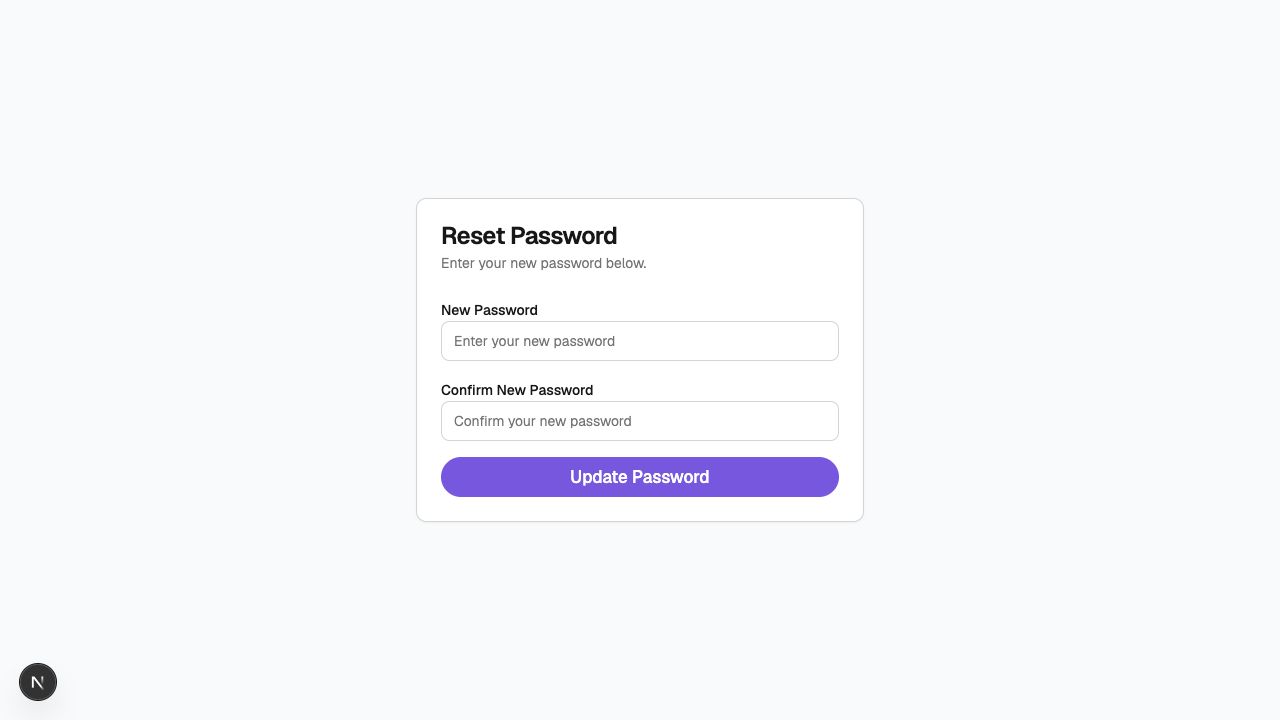
After you click the password reset link from your email, Peeptown opens the secure reset password screen so you can choose a new password.
Step 1: Open the reset link from your email
Start from the email sent by Peeptown after you request a reset link.
Click the link in that email to open the reset password page.
Step 2: Wait for Peeptown to verify the link
Peeptown checks that the reset session is valid before showing the form.
If the page sends you back to log in and asks you to click the reset link again, return to your inbox and open the latest reset email one more time.
Step 3: Enter your new password
- Type your new password in New Password.
- Type the same password again in Confirm New Password.
Your new password must be at least 6 characters long.
Step 4: Save the new password
Click Update Password.
When the update succeeds, Peeptown shows a success message and takes you back to the login page.
After the reset
- Use your new password on the login page.
- You can still use email OTP login if you prefer.
If the form shows an error
- Make sure both password fields match exactly.
- Use at least 6 characters.
- If the reset session has expired, request a fresh link from Forgot password.